> ## Documentation Index
> Fetch the complete documentation index at: https://daysheets.com/docs/llms.txt
> Use this file to discover all available pages before exploring further.
# Transfers and Grids
> Getting Started with Daysheets
Transfers allow you to setup rides with ease, and build grids to share with
festivals, vendors and promoters. Review our guide below to learn more.
## Adding Transfers
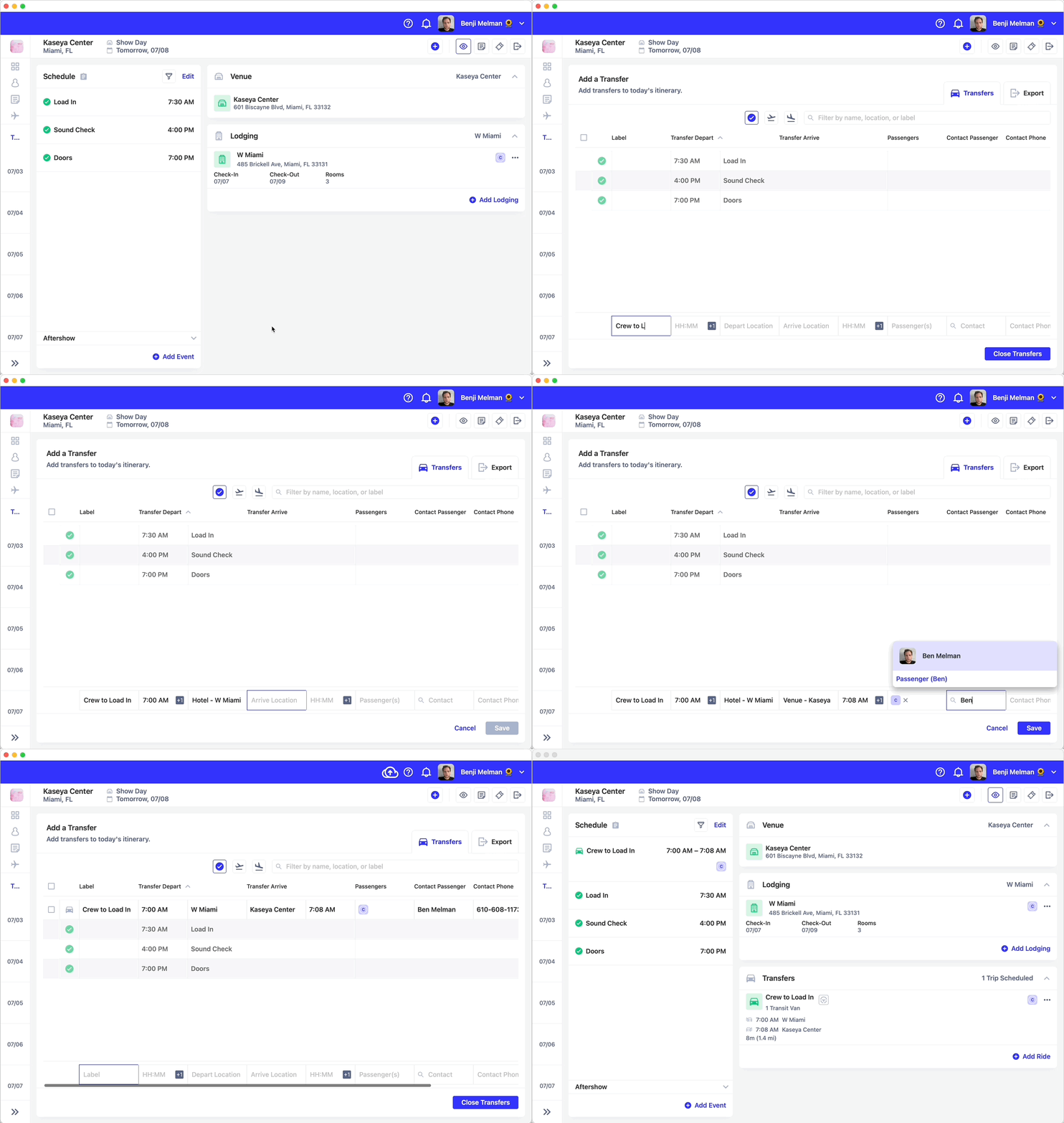 We'll create a ground transfer for the crew, timed around their venue load-in.
We'll use the navigation above the grid to add a day preview, for easier
transfer scheduling.
To get started, press ⌘+T to move to the Transfers view. you can also use the
blue + button in the top right, and click Transfers. Since we want to add a
transfer around an event, press the blue check button above the grid. These
buttons allow you to add a preview of your day within the transfer grid, so you
can transfer schedules accordingly:
Click the blue departures button to preview departing flight information, to
setup transfers around departure.
We'll create a ground transfer for the crew, timed around their venue load-in.
We'll use the navigation above the grid to add a day preview, for easier
transfer scheduling.
To get started, press ⌘+T to move to the Transfers view. you can also use the
blue + button in the top right, and click Transfers. Since we want to add a
transfer around an event, press the blue check button above the grid. These
buttons allow you to add a preview of your day within the transfer grid, so you
can transfer schedules accordingly:
Click the blue departures button to preview departing flight information, to
setup transfers around departure.
 Click the departures button to preview departing flight details, to setup
transfers around departures.
Click the departures button to preview departing flight details, to setup
transfers around departures.
 Click the arrivals button to preview arriving flight information, to setup
transfers around arrivals.
Click the arrivals button to preview arriving flight information, to setup
transfers around arrivals.
 We can see that load in takes place at 7:30AM, so we should setup a transfer at
7:00AM for the crew. Using the entry field in the bottom, enter the following
details to create a transfer:
1. Click on "Label" to give the ride a name, such as "Crew to Load In" then
press tab
2. Add a departure time, by entering a time. You can enter 7A and press tab or
1900 and tab, Daysheets will automatically format the time.
3. Search for a departure location. Use the google maps search to add a
location, or use shortcuts to find relevant locations:
* Type H for hotel, and any hotels for that day will be listed as a
suggested location. Use the arrow keys to select the appropriate hotel and
press tab.
* Type V for venue, and any venues associated with the day will be listed
under suggested locations.
* If you're searching for any other location, simply type in an address or
location, and select the correct result.
4. Enter your arrival location the same way you searched for the departure
location. Press tab.
5. Daysheets will calculate your arrival time, using Google Maps, but you may
want to adjust this to account for traffic. Press tab.
6. In 'Passengers', search for passengers to add to this ride. you can search
for individuals or groups. Once you've added the passengers riding in this
transfer, press tab.
7. The contact field allows you to assign a primary passenger. If you have a
phone number associated with the primary passenger, the contact number field
will automatically be populated. this field is optional, when you're ready
to proceed, press tab.
8. Specify the transfer type, such as 'Transit Van' or '2 SUV's'. Pressing tab
takes you to 'Save'.
9. Press Save, your ride is now created.
## Exporting Rides
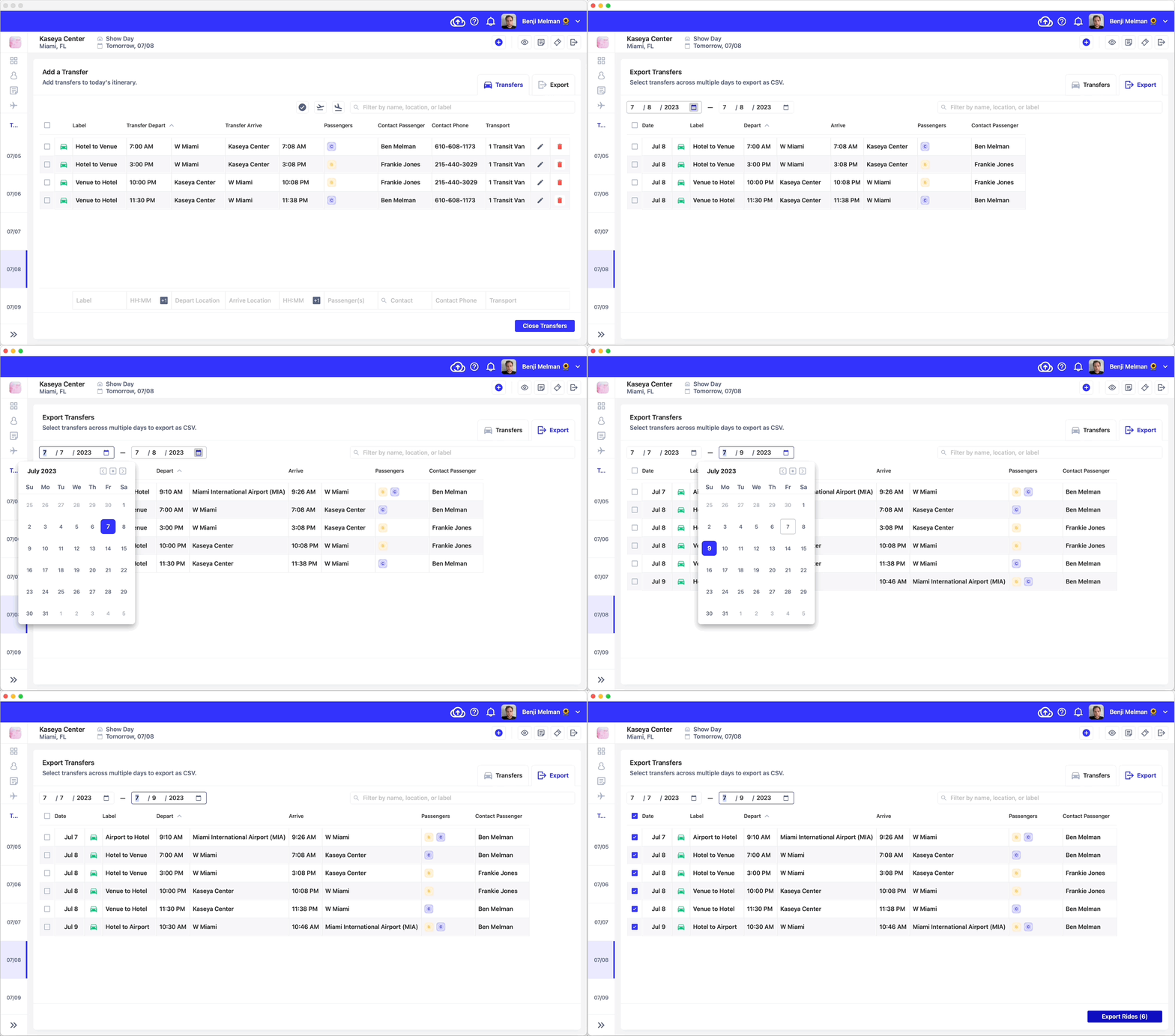
Daysheets allows you to export transfer grids as a customizable spreadsheet.
1. From the transfers view, click the export tab in the top right
2. You can export multiple days worth of transfers by adjusting the start and
end dates in the top left corner.
3. Finally, select the rides you wish to export using the check boxes on the
left, and click export.
4. You will have the option to save the grid to a location of your choosing.
From there you can open the spreadsheet in Excel or Numbers, and add, edit,
or style to your liking.
We can see that load in takes place at 7:30AM, so we should setup a transfer at
7:00AM for the crew. Using the entry field in the bottom, enter the following
details to create a transfer:
1. Click on "Label" to give the ride a name, such as "Crew to Load In" then
press tab
2. Add a departure time, by entering a time. You can enter 7A and press tab or
1900 and tab, Daysheets will automatically format the time.
3. Search for a departure location. Use the google maps search to add a
location, or use shortcuts to find relevant locations:
* Type H for hotel, and any hotels for that day will be listed as a
suggested location. Use the arrow keys to select the appropriate hotel and
press tab.
* Type V for venue, and any venues associated with the day will be listed
under suggested locations.
* If you're searching for any other location, simply type in an address or
location, and select the correct result.
4. Enter your arrival location the same way you searched for the departure
location. Press tab.
5. Daysheets will calculate your arrival time, using Google Maps, but you may
want to adjust this to account for traffic. Press tab.
6. In 'Passengers', search for passengers to add to this ride. you can search
for individuals or groups. Once you've added the passengers riding in this
transfer, press tab.
7. The contact field allows you to assign a primary passenger. If you have a
phone number associated with the primary passenger, the contact number field
will automatically be populated. this field is optional, when you're ready
to proceed, press tab.
8. Specify the transfer type, such as 'Transit Van' or '2 SUV's'. Pressing tab
takes you to 'Save'.
9. Press Save, your ride is now created.
## Exporting Rides
Daysheets allows you to export transfer grids as a customizable spreadsheet.
1. From the transfers view, click the export tab in the top right
2. You can export multiple days worth of transfers by adjusting the start and
end dates in the top left corner.
3. Finally, select the rides you wish to export using the check boxes on the
left, and click export.
4. You will have the option to save the grid to a location of your choosing.
From there you can open the spreadsheet in Excel or Numbers, and add, edit,
or style to your liking.
 Congratulations, you're moving through Daysheets like a pro!
From here, you can learn how to add reservations like flights, or hotels, or
you can invite your team members to access Daysheets.
Congratulations, you're moving through Daysheets like a pro!
From here, you can learn how to add reservations like flights, or hotels, or
you can invite your team members to access Daysheets.