> ## Documentation Index
> Fetch the complete documentation index at: https://daysheets.com/docs/llms.txt
> Use this file to discover all available pages before exploring further.
# Adding Files & Documents
> Getting Started with Daysheets
Need to add maps, menus, or other documents to your tour while on the go?\
\
Daysheets mobile allows you to add a document to your itinerary quickly and easily.
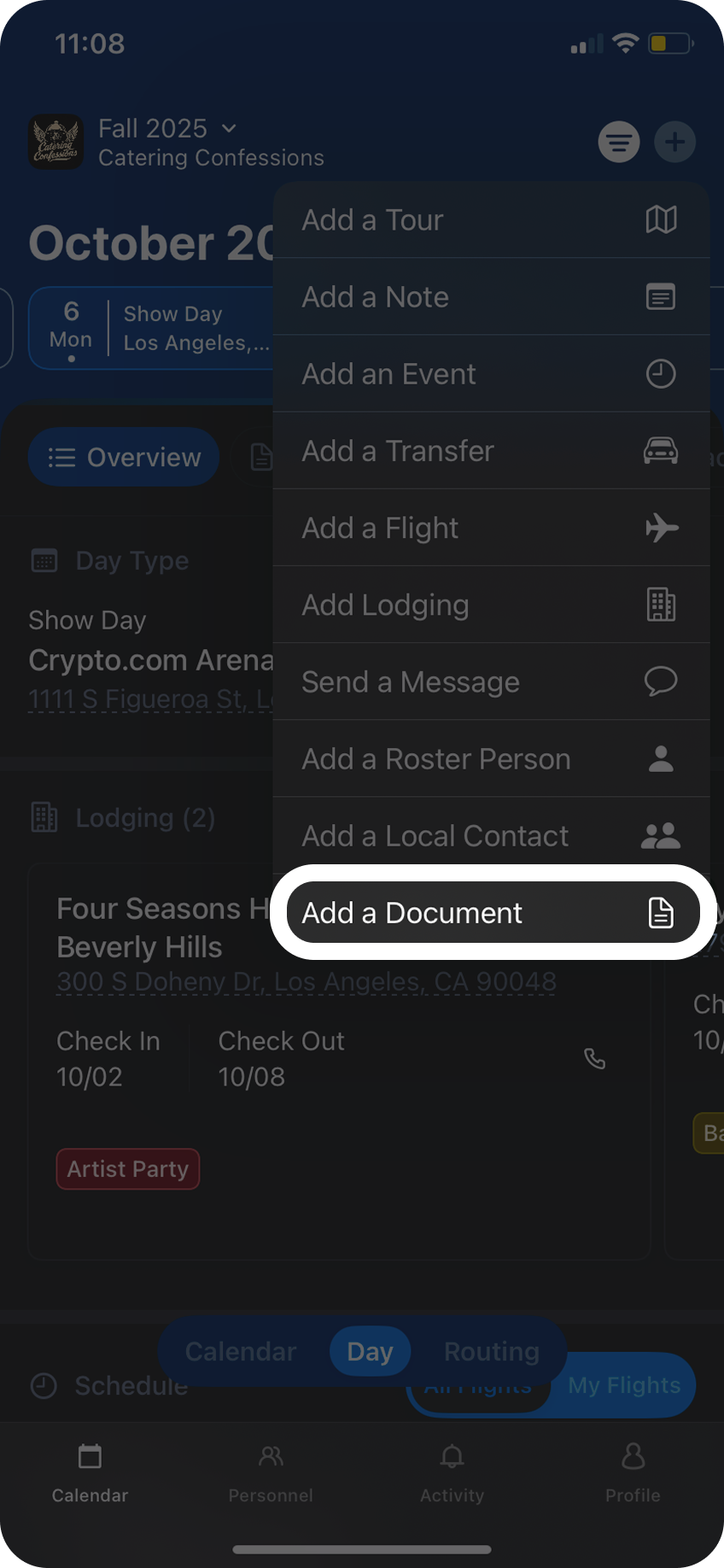
Simply click the `+` button in the top right corner and choose `Add a Document` from the dropdown menu.
 Daysheets will allow you to upload saved files from your phone to choose from. Selecting a file from your phone will add it to the documents folder for the day that was selected, and the file will now be accessible by everyone on the tour.
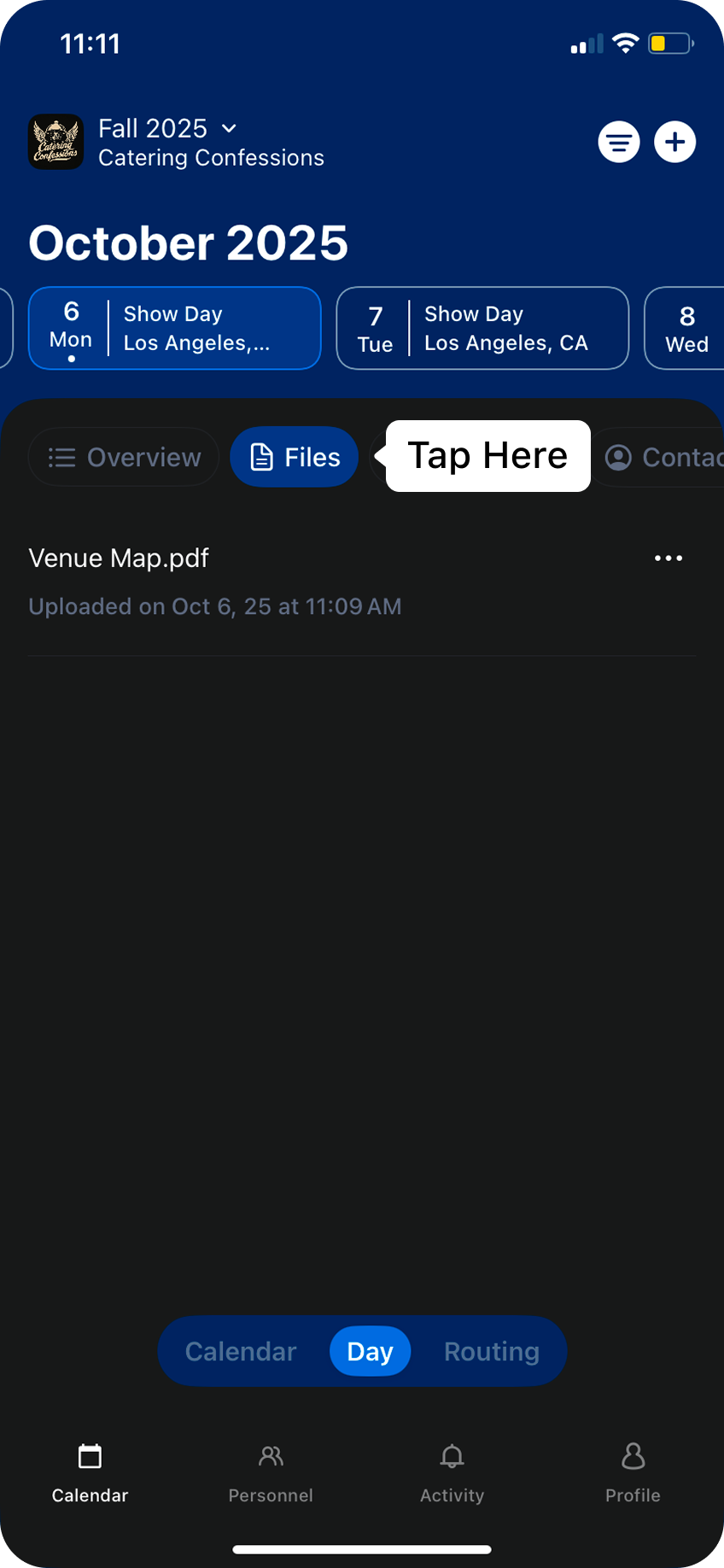
To view this document, click on the `Files `tab in the Day View.
Daysheets will allow you to upload saved files from your phone to choose from. Selecting a file from your phone will add it to the documents folder for the day that was selected, and the file will now be accessible by everyone on the tour.
To view this document, click on the `Files `tab in the Day View.