> ## Documentation Index
> Fetch the complete documentation index at: https://daysheets.com/docs/llms.txt
> Use this file to discover all available pages before exploring further.
# Adding Personnel
> Getting Started with Daysheets
Need to add band or crew members to your tour while on the go? With Daysheets Mobile, you can do it all right from your phone.
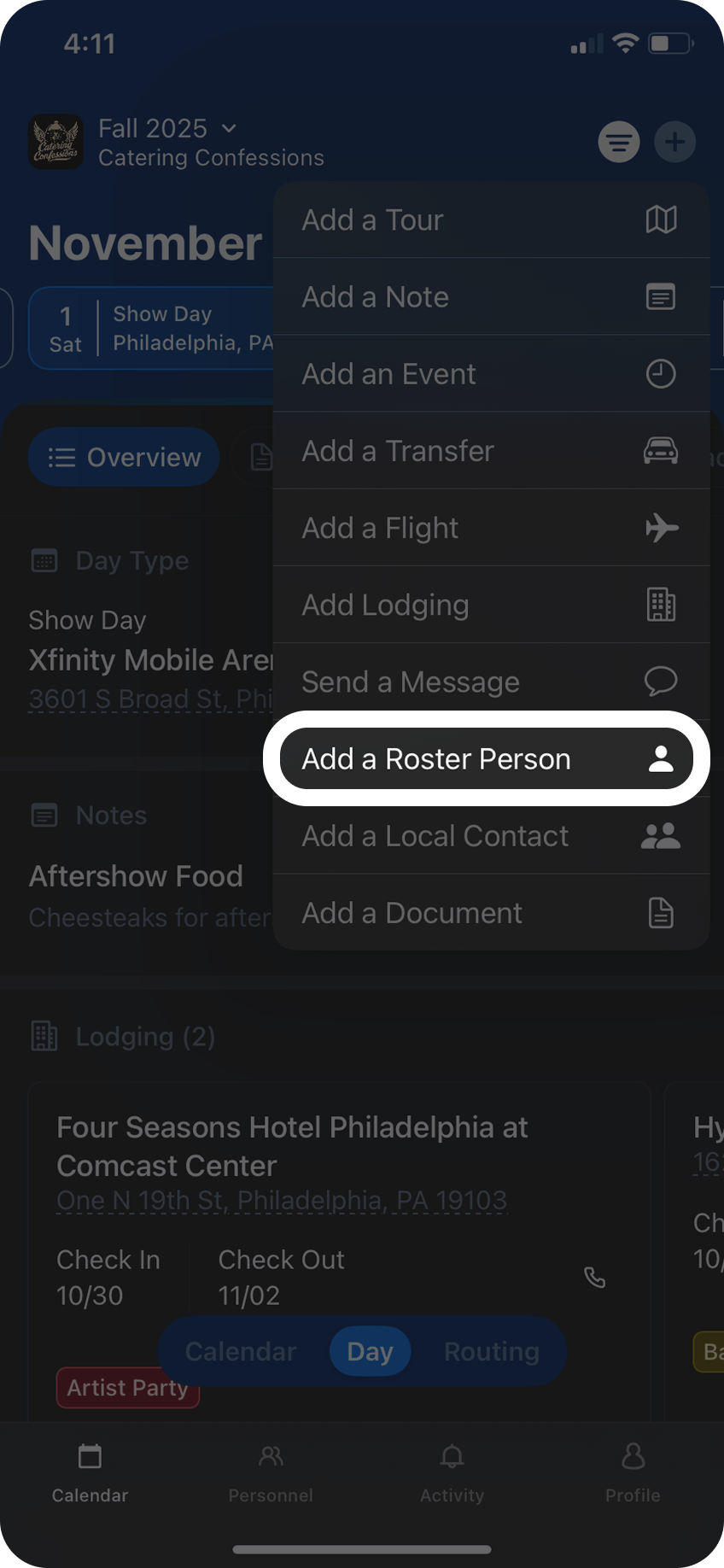
To get started, tap the `+` button in the top left and select `Add a Roster Person`.
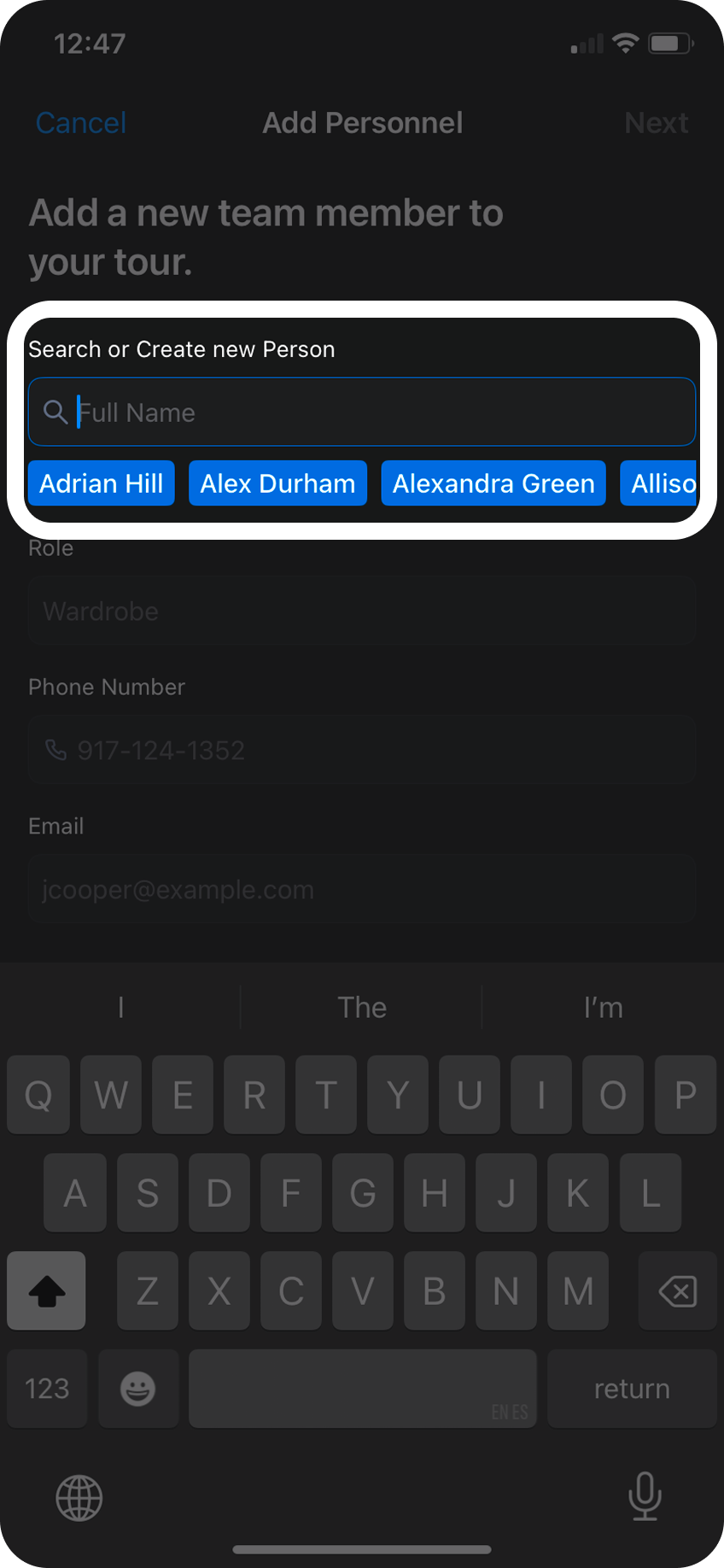
 Type in the person’s name to search for who you’ve worked with in the past, or tap the `Create New` button to add a new person. Assign their role, add their phone and email, and hit `Next`.
 Next, if your tour is using groups, you can assign this individual to a group that’s already been created. If your tour doesn’t use groups, select `None`.
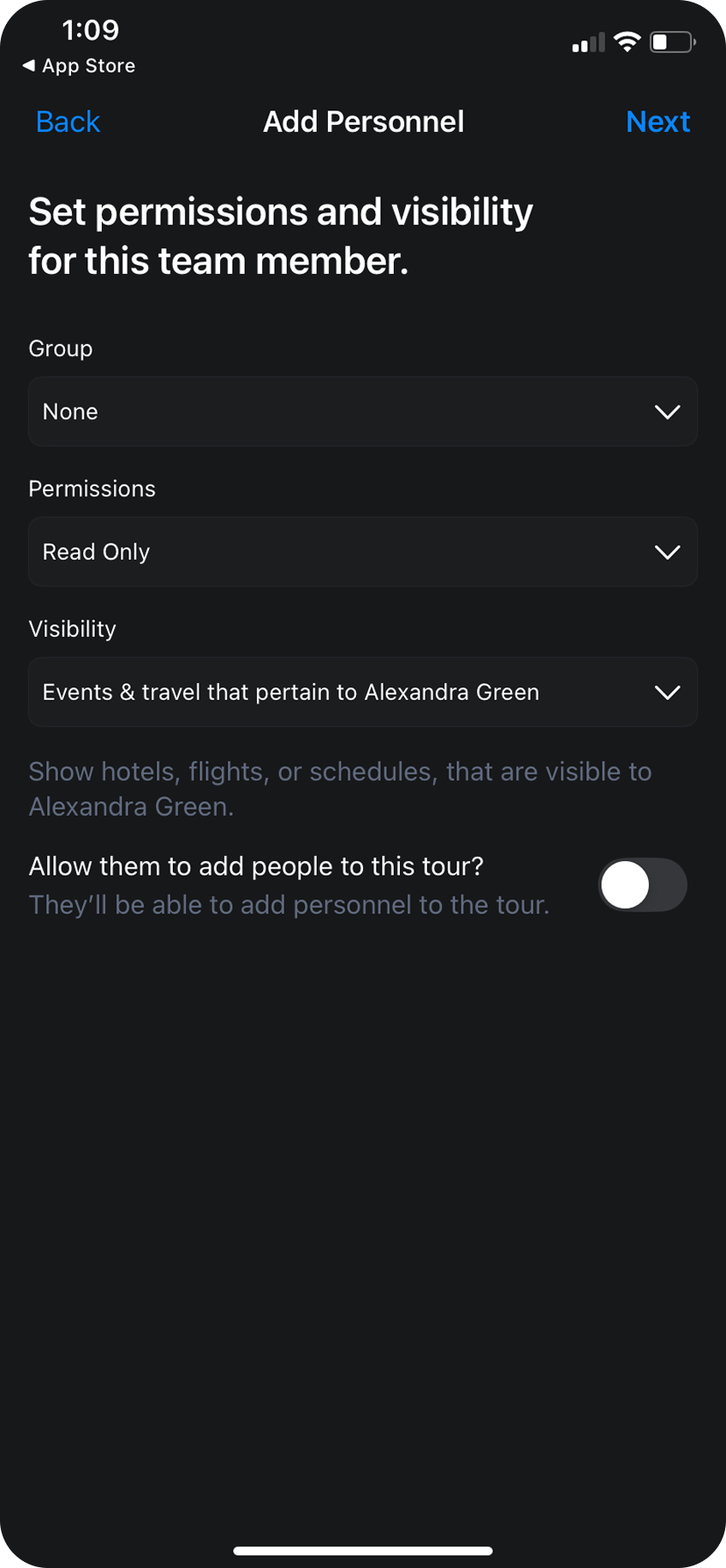 Next you’ll want to adjust their permissions and visibility:\
\
Permissions adjust the user’s experience when using Daysheets:
Read Only - this permission allows the member to view information, without the ability to edit anything.
Edit Access - allows them to modify any event or reservation on the tour
None - this person will be able to connect, but not be able to see the tour.
\
Visibility restricts what information is going to be displayed to the user:
* All Events and Travel - this person will see every event and detail that’s on this tour
* Events and Travel pertaining to the user - Restricts this user to only see events that aren’t tagged with anyone specifically, or events and reservations that include their user tag.
* Group Specific Events & Travel . Restricts this user to only see events that aren’t tagged with anyone specifically, or events and reservations that include their user tag, or the tag of the group they are associated with.
\
Adding others to this tour Toggle:
* This toggle allows users with edit permission to also be able to create and add new personnel members to this tour.
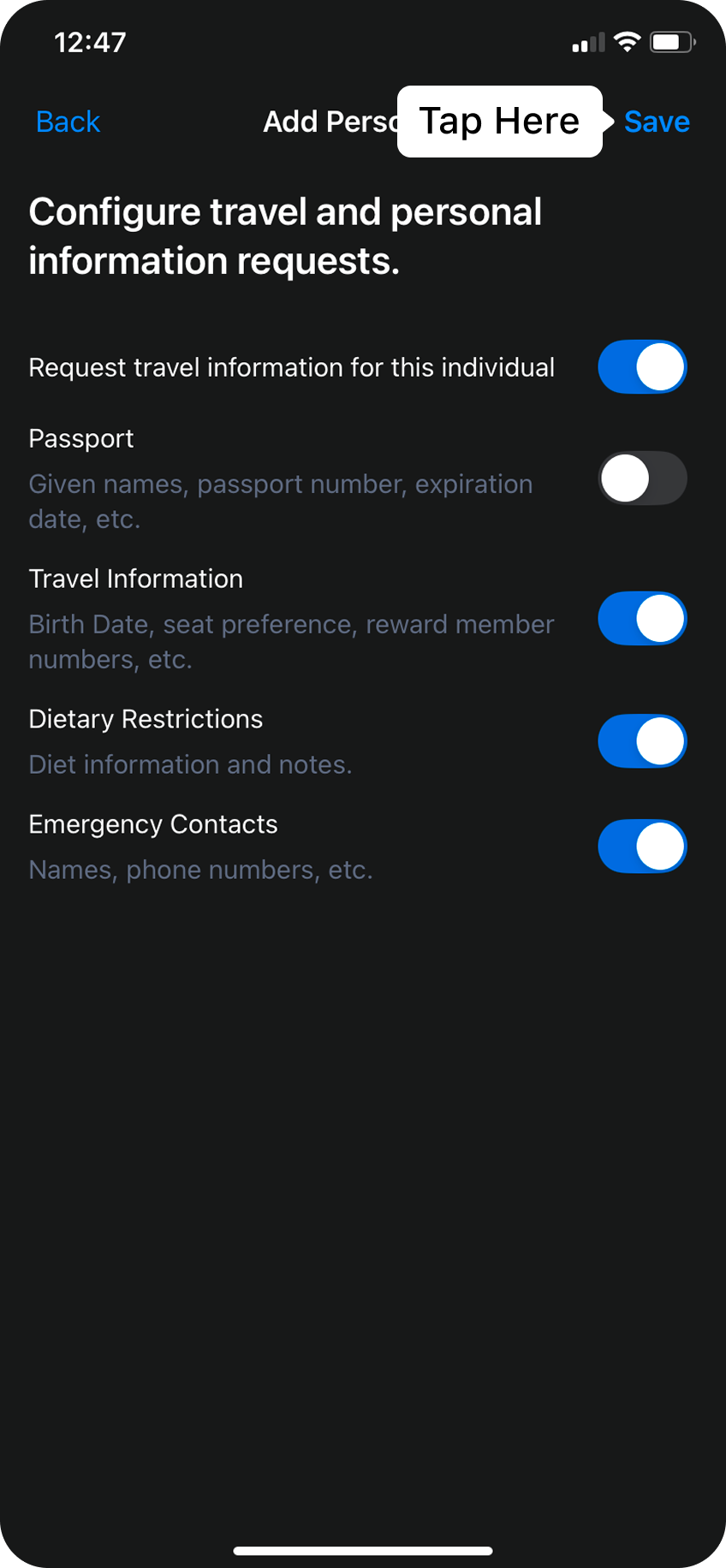
Next. you can request travel profile information, so when the user signs up, they are prompted to share basic travel information such as passport details, travel reward numbers, seat preferences, dietary needs, and emergency contacts. If you already have this information, you can toggle off the travle profile request. \
\
Once configured, hit `Save` and they will be added to the tour.
Next you’ll want to adjust their permissions and visibility:\
\
Permissions adjust the user’s experience when using Daysheets:
Read Only - this permission allows the member to view information, without the ability to edit anything.
Edit Access - allows them to modify any event or reservation on the tour
None - this person will be able to connect, but not be able to see the tour.
\
Visibility restricts what information is going to be displayed to the user:
* All Events and Travel - this person will see every event and detail that’s on this tour
* Events and Travel pertaining to the user - Restricts this user to only see events that aren’t tagged with anyone specifically, or events and reservations that include their user tag.
* Group Specific Events & Travel . Restricts this user to only see events that aren’t tagged with anyone specifically, or events and reservations that include their user tag, or the tag of the group they are associated with.
\
Adding others to this tour Toggle:
* This toggle allows users with edit permission to also be able to create and add new personnel members to this tour.
Next. you can request travel profile information, so when the user signs up, they are prompted to share basic travel information such as passport details, travel reward numbers, seat preferences, dietary needs, and emergency contacts. If you already have this information, you can toggle off the travle profile request. \
\
Once configured, hit `Save` and they will be added to the tour.
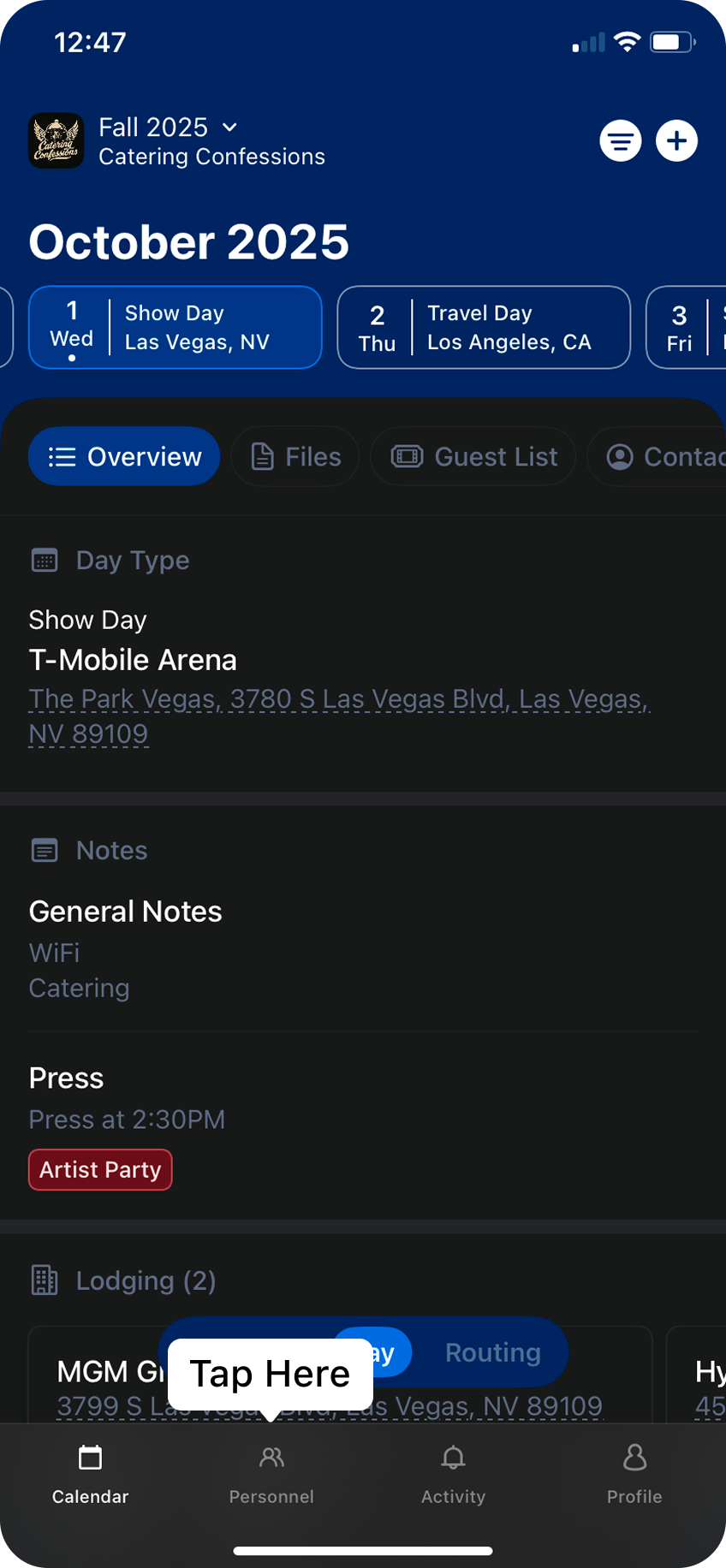
 Now that you’ve added the newly created tour member, when you’re ready to invite them to the tour, tap `Personnel` in the bottom menu bar to send them an invitation.
 Find the newly created team member, select the person, and follow the instructions to generate a unique invite code, and then you can send the invitation to their email, or share the unique code via text, or other communication methods provided by your phone.
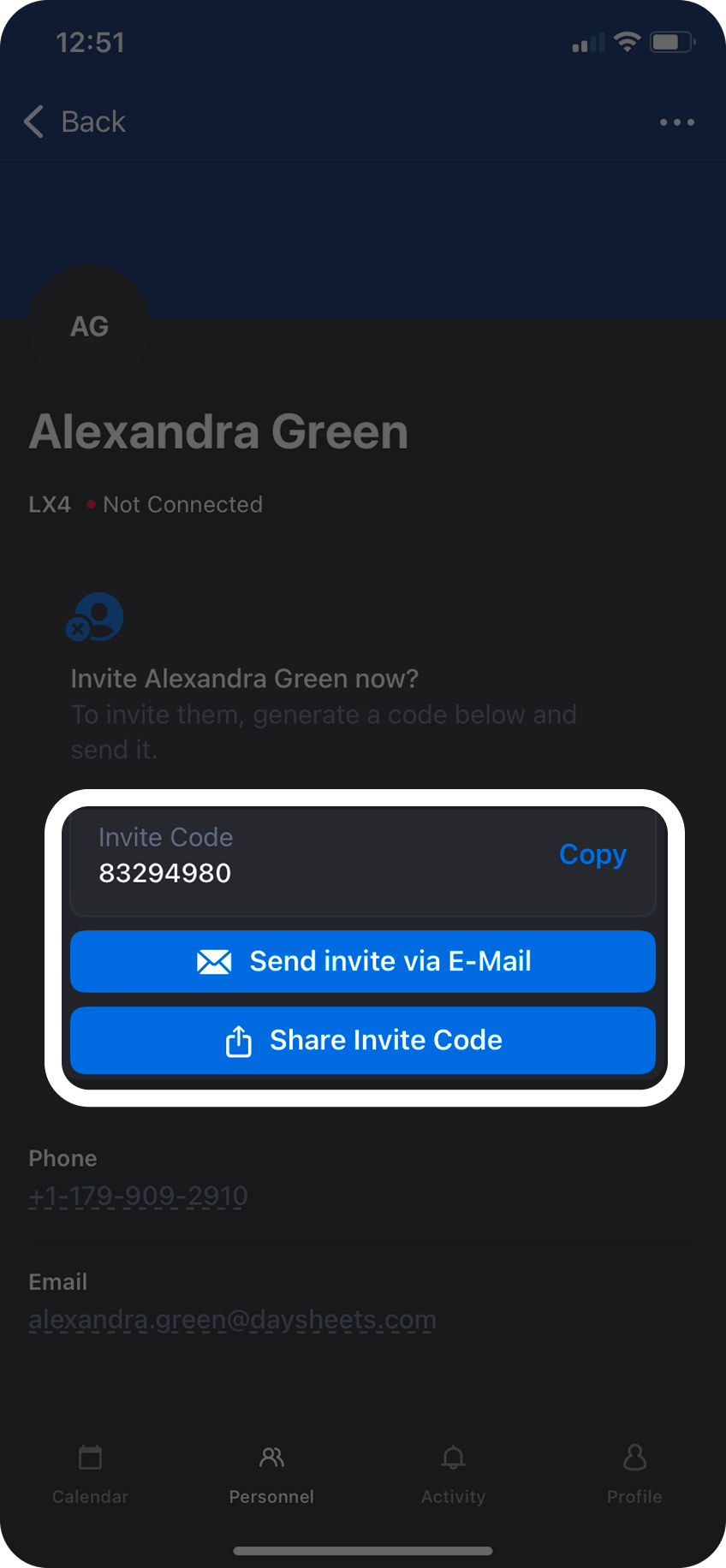 When they receive the message, they can download the app, and join the tour using their invite PIN. Once they have accepted the invitation, their status will change from `Not Connected` to `Connected`.