
How to Create Personalized Day Sheets for Every Group on Tour
Multi Day in Daysheets lets you build group-specific routing and export filtered day sheets as a PDF so your band, crew, and drivers only see what matters to them.

By Ben Melman
Founder & CEO
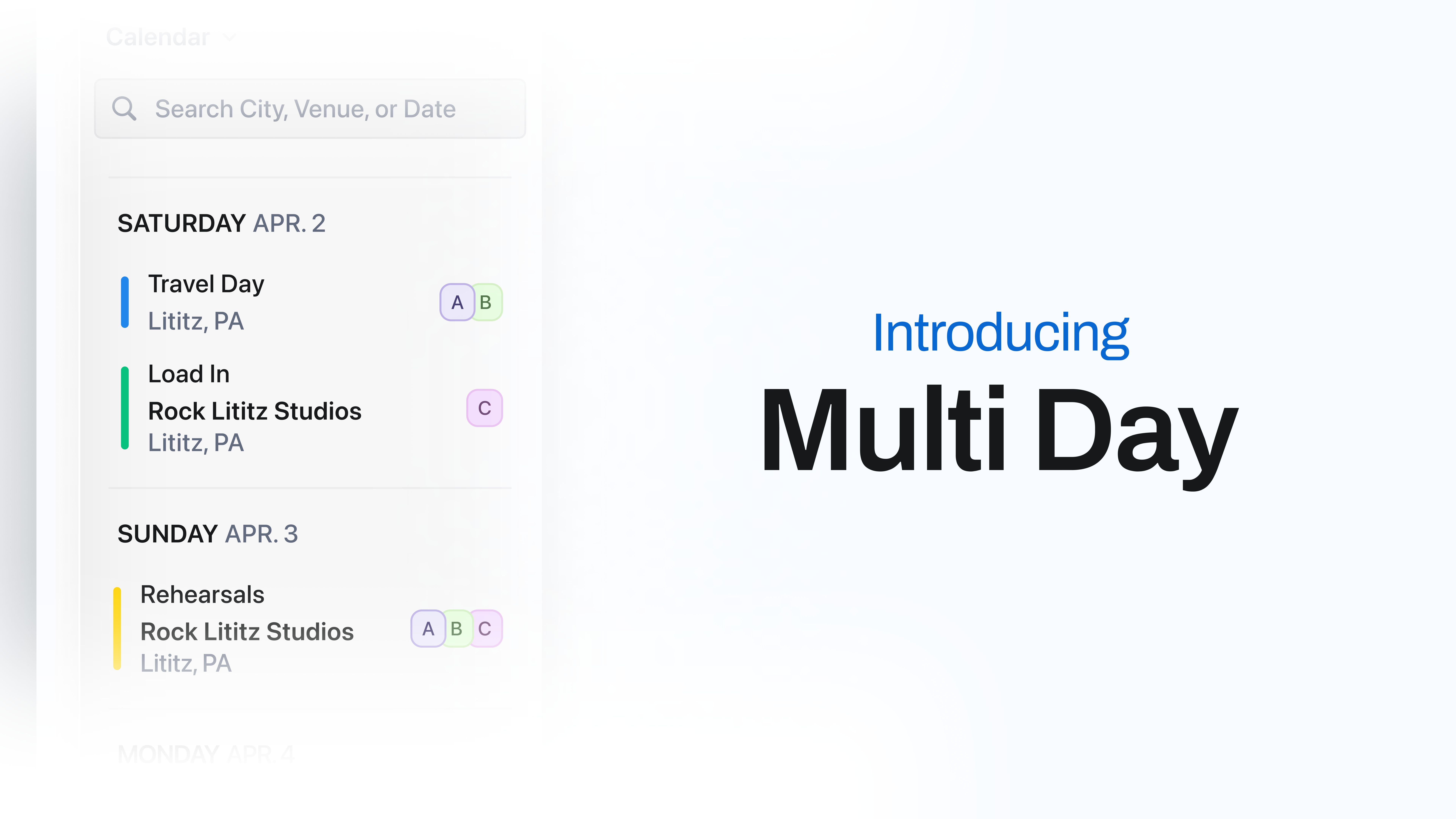
You've built the perfect day sheet. Every detail is there: lobby call for the band, load-in time for the crew, bus call for the drivers, press schedule for the artist, and hotel info for everyone. It's thorough and accurate, but completely overwhelming for 80% of the people who received it.
Your lighting director doesn't need to know what time the artist's press call is. Your bus driver doesn't care about soundcheck. And your artist definitely doesn't want to scroll past sixteen crew call times to find out when their car is coming. When everyone gets the same day sheet, you create noise. Noise leads to questions. Questions lead to your phone buzzing at midnight with "hey, what time is MY lobby call?"
There's a better way to handle this, and it starts with how you structure your tour from day one.
What Is a Day Sheet?
A day sheet is a daily itinerary shared with a touring party that outlines the schedule, logistics, and key details for a specific day on tour. Tour managers use day sheets to communicate everything from venue addresses and load-in times, to hotel information and transportation details, giving every member of the touring organization the information they need to get through the day successfully.
Day sheets have been around for decades, originally handwritten and slid under hotel room doors, then created in FileMaker or Excel and emailed as PDFs. The format has evolved, where Apps like Eventric Master Tour made it easier than ever before to export a PDF, but the core problem never changed: different people on tour need different information, and a single document struggles to serve all of them well.
The Problem With One Day Sheet for Everyone
On a 20-person club tour, one day sheet works fine. Everyone is more or less in the same place, doing the same things, at the same times. But the moment your touring party grows to 30, 40, 60+ people, single day sheets start to become less effective.
Consider a typical arena tour. You might have:
- An A Party (artist, personal team, management) flying privately, staying at a separate hotel, with a completely different schedule than the rest of the tour
- A B Party (band, dancers, background vocals) with their own lobby call, rehearsal schedule, and transportation
- A C Party (crew — audio, video, lighting, backline, wardrobe) arriving hours before anyone else for load-in, and often departing the city that same night on a tour bus
- Drivers operating on an entirely separate timeline, sometimes arriving a day early or departing in the middle of the night
If you need to coordinate three day sheets, it’s a lot of work. And when all of those schedules live on one day sheet, you see a wall of text. People scan for their name or their department, end up missing something, and then you're fielding calls. Worse, on days where groups are in completely different cities — your C Party is loading into tomorrow's venue while your A and B Party have a day off — a single day sheet can't even represent what's happening without causing confusion.
The old workaround was to create multiple day sheets manually. Copy the master, strip out the irrelevant details, and save a separate PDF for each group. It works, but it's tedious, error-prone, and doubles your workload every time something changes.
How Groups and Group Tags Organize Your Tour
The foundation of personalized day sheets is a well-organized group structure. Before you start entering your routing or building schedules, you need to decide how to divide your touring party.
Groups are the top-level divisions on your tour. The most common structure in the industry uses a lettered party system:
- A Party — Artist, personal team, management, security
- B Party — Band, performers, musical director
- C Party — Crew and production staff
- D Party — Drivers, logistics, runners (on larger tours)
Some tours organize themselves differently, like splitting by department instead of party, or combining A and B into one group. The structure depends on your tour's size and how differently each group's schedule looks.
Group Tags are subgroups within each group, and they add another layer of specificity. Inside your C Party, for example, you might have tags for Audio, Video, Lighting, Backline, and Wardrobe. Inside your B Party, you could tag Band, Dancers, and Background Vocals separately.
Group tags matter when those subgroups have different call times, different transportation, or different venue access points — which happens more often than you'd think on production-heavy tours. Your audio crew might need to be at the venue two hours before lighting. Tagging them separately lets you build that distinction right into the schedule.
The easiest way to set up groups in Daysheets, is to create them during tour creation. Daysheets suggests an A Party, B Party, and C Party to start, but you can name them whatever makes sense for your tour. You can also add custom groups with their own initials and colors. Group tags are created in the next step — just type the subgroup name, and it will be nested under the parent group.
Setting Up Multiday Routing in Daysheets
Here's where it comes together. Multiday is the feature that connects your group structure to your routing, so that each day on tour can have different schedules for different groups.
When you're building your tour routing in Daysheets, you add day types (Show Day, Travel Day, Day Off, Load In, Rehearsal, or custom types) and assign locations. With Multiday, you can also tag each day type with a specific group.
Here's how it works in practice:
- Add a day type and location as usual. Enter your day type from the dropdown — you can search existing types or create a custom one — then add the location using Daysheets' Google Maps search.
- Associate a group. If you've created groups, you can tag this day to a specific group using Multiday tagging. For example, tag a Load In day to your C Party.
- Understand the visibility rule. Any day type or location that doesn't have a group tag will appear for everyone on the tour. The moment you tag something to the C Party, members of the A or B Party won't see that entry. This is the key principle: untagged content is universal, tagged content is filtered.
- Handle split days. This is where Multiday really shines. Say your C Party has a Load In day while your A and B Party have a Day Off — all on the same date, but potentially in different cities. Add a Day Off for your A and B Party, then add the Load In for your C Party. Each group sees only their version of the day.
- Continue building. Some days will be straightforward (everyone at the same show), and you won't need to tag anything. Other days — travel splits, advance crew calls, off-day variations — will use Multiday tagging.
When You Need Multiday (and When You Don't)
Multiday is built for tours where different groups genuinely have different schedules. If you're running a 5-piece band in a van doing club dates, everyone's on the same schedule, and a single day sheet handles it.
But if any of these sound familiar, Multiday will save you time and reduce confusion:
- Your touring party is 20+ people across multiple departments
- Groups travel separately (buses, flights, different hotels)
- Your crew arrives at venues hours or days before the artist
- You have split days where groups are in different cities
- You're tired of fielding "does this apply to me?" questions
The overhead of setting up groups and group tags during tour creation is minimal — a few extra minutes. The time you save over a 30, 50, or 80-date tour is significant, and the reduction in confusion for your team is immediate.
For tour managers coming from the old way of doing things — one giant spreadsheet, one PDF for everyone — the shift to group-based itineraries requires a small adjustment in how you think about tour structure. But once you've run one tour with personalized day sheets, the old approach feels like sending the same email to your entire contact list and hoping everyone finds the part that's relevant to them.
Exporting Filtered Day Sheets by Group
Setting up Multiday gives you a clean, organized routing where each group sees only what's relevant to them. However, the real payoff comes when you need to export day sheets.
Daysheets lets you export PDF day sheets, and when you've set up groups, you can filter the export to a specific group. That means your C Party PDF only shows C Party schedules, locations, and details. No A Party press calls cluttering the page. No B Party rehearsal times that don't apply. Just a clean, focused document that your crew can glance at and immediately know what their day looks like.
This is the practical outcome of everything you've built. Your artist's assistant gets a concise day sheet with car times, press schedule, and hotel details. Your production manager gets load-in, soundcheck, and venue specs. Your drivers get routes, parking info, and bus calls. All exported from the same source, all accurate, and all without you manually creating separate documents.
When something changes — and something always changes — you update it once in Daysheets, and the next export for any group reflects the change. No hunting through multiple spreadsheets or forwarding corrected PDFs to half the tour.