
How to Export Day Sheets That Actually Look Professional
Stop sending ugly day sheets. Daysheets Exporter 2.0 lets you customize layouts, brand your exports, and build tour books before you hit send.

By Chris Hodge
Biz Dev
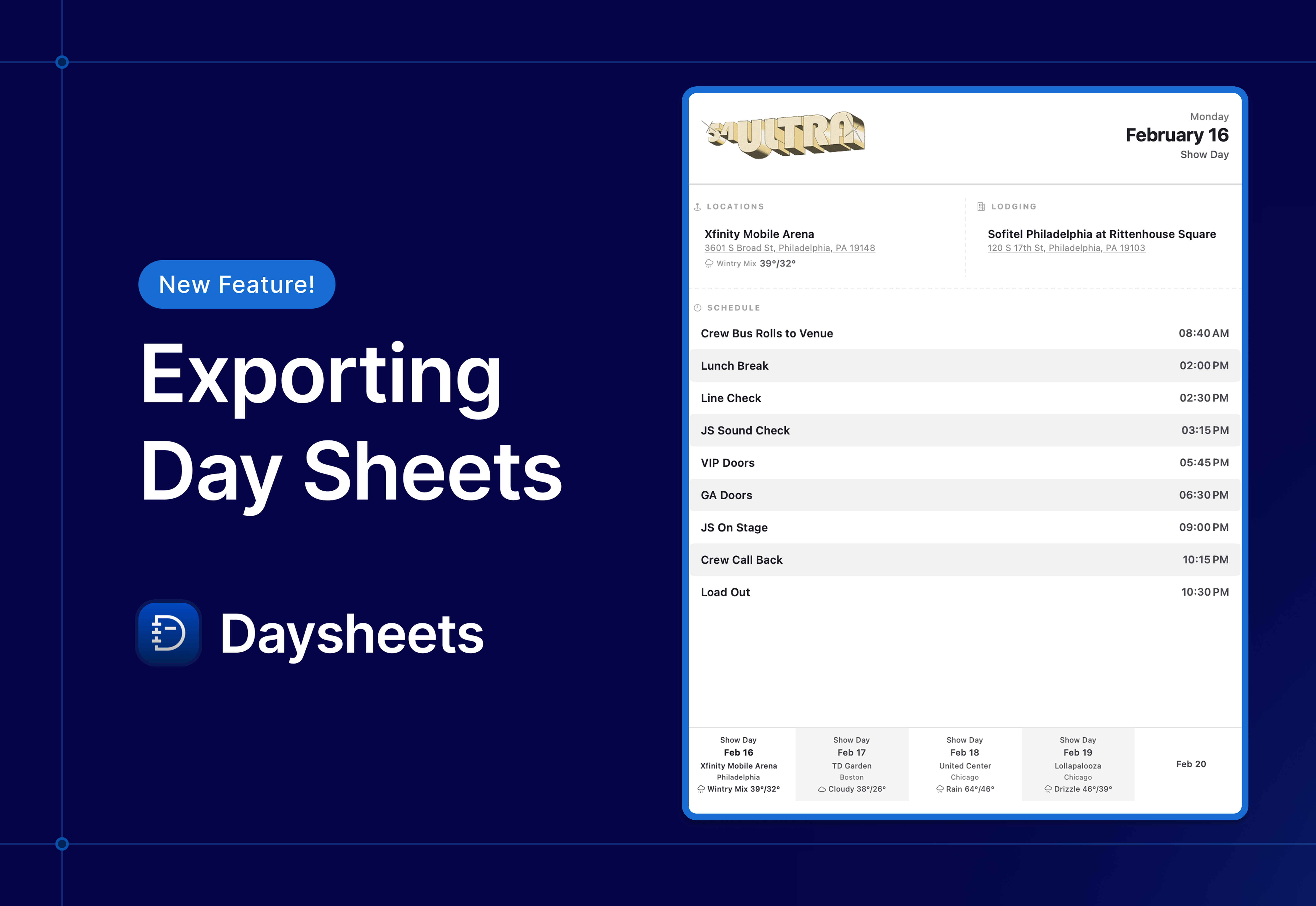
You've spent hours entering schedule times, confirming hotels, pulling flight details, and triple-checking the venue address. Then you have to manually re-create a day sheet to either print and slip under the band member’s doors, or craft it in an email to send out to everyone.
Every tour manager, production manager or coordinator has been there. The information is right, but the formatting is wrong. The schedule runs off the page. The fonts are tiny. The hotel section takes up half the document when only two people are checking in. You send it anyway because the bus leaves in four hours and nobody has time to fight with a PDF.
Here's the thing: the way a day sheet looks affects whether people actually read it. A cluttered, hard-to-scan day sheet means your rigger misses the early load-in call, your artist's assistant doesn't see the hotel swap, and you're fielding the same questions you already answered..on the page nobody read.
And even though Daysheets has a beautiful mobile app to keep your team members up to speed far more efficiently than any PDF, with a company name like Daysheets, we know the value of a day sheet. Daysheets Exporter 2.0 was built for flexibility, and to save you time. It gives you full control over how your day sheets look before they go out, without requiring a design degree or an extra hour you don't have.
See how Daysheets handles day sheet exports →
Why Most Day Sheets Look Terrible
The problem isn't the information. It's the delivery.
Traditional day sheet tools give you one layout. Maybe two. You fill in the fields, hit export, and get whatever the software decides to give you. If your tour has 40 people across three hotels with six flights and a packed schedule, you get a wall of text that nobody wants to scroll through. If it's a simple club date with a four-piece band, you get an empty-looking document with sections that don't apply.
Most tools also don't account for how day sheets actually get used. Some go out over email and get read on phones. Others get printed and taped to the greenroom wall. Those are two very different formats, and treating them the same way is why half the day sheets in circulation right now are either squished, cut off, or weirdly spaced.
Then there's the branding question. If you're managing a tour for a major artist, the day sheet is a professional document that represents the production. A generic-looking export with default fonts doesn't match the level of the show you're running. So this requires manual creation of day sheets in Excel or Word, taking a ton of time that you don’t have.
What Makes a Day Sheet Worth Reading?
A good day sheet gets the right information in front of the right people, fast. That means a few things:
Visual hierarchy matters. The schedule should be the thing your eye hits first. Hotel info, notes, and flights should be findable but not competing for attention. When everything is the same size and weight, nothing stands out.
Less is more for some audiences. Not everyone on the tour needs every detail. A personalized day sheet for each group is the ideal approach — but even within a single export, being able to hide irrelevant sections keeps things clean.
Format should match distribution. A day sheet going out over email needs to work as a single scrollable page. A printed day sheet should break cleanly across two pages without cutting a section in half. These are different layout problems.
Consistency builds trust. When your day sheets look the same every night, people know where to find things. They stop asking you what time lobby call is because they know it's always in the same spot.
How to Customize and Export Day Sheets in Daysheets
The Exporter 2.0 lives behind the Export button in the top right corner of Daysheets. Once you're in, you'll see three export modes on the left sidebar: Single Day Sheet, Tour Book, and Routing. Pick the mode that matches what you need, then start customizing.
The interface is split into three panels. The left sidebar lets you navigate your routing and switch between days. The center shows a live preview that updates as you make changes. The right panel holds all the customization controls.
For a detailed walkthrough of every setting, check the Export Day Sheets help doc.
Choose Your Export Mode
Before you start tweaking layouts, pick how you're distributing this thing.
Email mode exports your day sheet as a single continuous page. If the content runs longer than a standard 8.5 x 11, Daysheets stretches the page to 12 or 13 inches so nothing gets cut off. This is what you want when people are reading on their phones or in an email client.
Print mode automatically splits the content across multiple pages and shows you exactly where the page break falls. This is for day sheets getting printed and posted at the venue or handed out on the bus.
This one toggle eliminates the most common day sheet formatting problem: content that looks fine on your screen but breaks awkwardly when someone else opens it.
Drag, Drop, and Rearrange Your Layout
Every section on your day sheet (schedule, lodging, notes, flights, day type) can be clicked and dragged to a new position. Want notes above lodging instead of below? Drag it. Want the schedule to sit next to the venue info in a split-column layout? Drag it to the left or right of another section and they'll sit side by side.
This is where the Exporter goes from "export tool" to "layout tool." You're not locked into a fixed order. You're building the document the way it makes sense for your tour.
Split-column layouts are especially useful for busy days where you want to keep the schedule visible without pushing flights and hotels below the fold. Two sections side by side means more information in less vertical space.
Dial In Every Section
Click any section in the preview (or expand it in the right panel) and you'll get controls specific to that section.
Schedule has the most options: toggle end times, switch between 12-hour and 24-hour formats, show or hide transfers and flights inline, adjust spacing, apply zebra striping for readability, bold event names or times, and control font size independently from the rest of the document. You can even click individual events to hide them or change their text color.
Lodging shows all your hotels as a checklist. Uncheck any hotel to exclude it. For each one, toggle guest names, confirmation numbers, check-in/out dates, phone numbers, and group tags on or off.
Flights lets you control whether arriving and in-transit flights show up (not just departures), plus confirmation numbers, seat assignments, and passenger names.
Notes can be individually styled with highlight colors, font colors, and background shading. You can even create an export-only note — something that appears on the PDF but isn't stored in your tour data. Handy for one-off reminders like "WiFi password: backstage2025."
Footer includes an optional weather forecast. Set how many days of weather to display, and toggle the city and venue name.
Brand It
The header is where your day sheet stops looking generic. Upload your tour logo and it slots into the header alongside the artist name, tour name, date, and day type. Resize it with a height slider. Add a background image or color behind the header and adjust opacity so the text stays readable.
Every header element (day type, date, artist name, tour name) can be dragged to reorder and set to left, center, or right alignment. Hide anything you don't need.
If you're managing a large team across multiple departments, a branded, consistent header helps everyone recognize the day sheet at a glance.
Save It as a Template
Once you've got the layout dialed, save it as a template so you never have to set it up again. Click the Template button in the top-left corner of the Exporter, name your template, and it's available for every future export.
Build and export your first day sheet in Daysheets →
Daysheets also ships with three built-in templates to start from:
- Daysheets Classic — Matches the layout from Daysheets 1.0. Familiar if you've been using Daysheets for a while.
- Daysheets 2.0 — Uses the new Day Type Bar, puts notes above lodging, and adds card styling around lodging sections. A good starting point for most tours.
- Venue Schedule — Stripped-down layout designed for printing and posting at the venue. Schedule-forward, minimal extras.
Start from one of these and customize it to match your tour. That's the fastest path to a polished export.
How to Export a Tour Book
Single-day exports handle the nightly send. But when you need to hand someone a complete tour book — your artist manager, a new crew member joining mid-run, or a travel agent who needs the full picture — the Tour Book mode has you covered.
Select Tour Book from the left sidebar, set your date range, and Daysheets compiles every day into a single multi-page document. Each day gets its own page with all the same customization options available in single-day mode.
At the bottom of the Tour Book panel, toggle on any of these optional sections:
- Routing — Appends your full routing as a PDF in list view.
- Calendar — Adds a monthly calendar view with day types color-coded to match your routing.
- Cover Page — Upload a custom cover image. Drag it right into the canvas.
That's a tour book you can hand to a new crew member on day one and they'll know everything: cover page, calendar overview, full routing, and every day sheet for the run. Daysheets generates the whole thing in seconds.
For the full setup walkthrough, see the Export Tour Books help doc.
Share It Your Way
When the export looks right, you have two options:
Download saves it as a PDF to wherever you want on your device. Standard, simple, done.
Share lets you send the export directly to other apps or to anyone in your rolodex. No downloading, no attaching, no "see attached" email. One tap and it's sent.
Whether you're sending the nightly day sheet from the bus at midnight or compiling a tour book for production week, the workflow is the same: customize once, template it, and export in seconds every night after that.
The Day Sheet People Actually Read
The best day sheet isn't the one with the most information. It's the one that puts the right information where people expect to find it, formatted so it's easy to scan, and consistent enough that nobody has to think about where to look.
Daysheets Exporter 2.0 gives you that control without adding time to your workflow. Customize the layout, brand it, save it as a template, and export — whether that's a single day sheet for tonight's show or a 45-date tour book for the entire run.
Ready to build day sheets people actually read? Try Daysheets free for 14 days — no credit card required.