

Export Modes
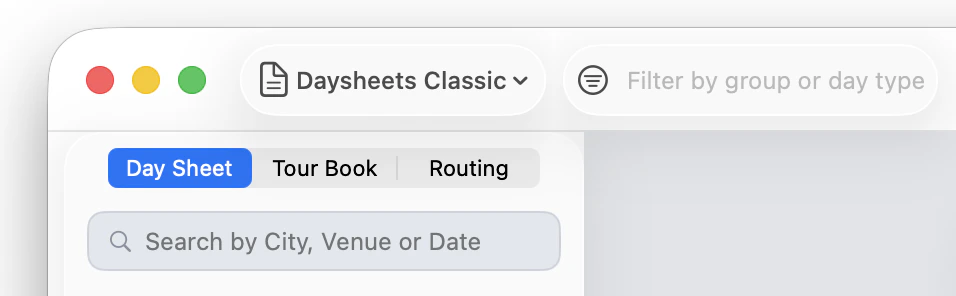
On the left-hand side of the Exporter, you’ll find three export options:- Single Day Sheet: Export one day at a time. Use this for nightly day sheets, venue schedules, and similar single-day documents.
- Tour Book: Select a range of dates and export them together as a multi-page tour book with optional cover page, calendar, and routing.
- Routing: Export your routing on its own as either a PDF or an Excel spreadsheet.
Navigating the Exporter
When exporting a single day sheet, click into any day to begin customizing it. The Exporter interface is split into three areas:- Left sidebar: Select your export type, and navigate your routing. Click through different days to navigate, or use the search bar above the routing to search by city, venue, or date.
- Center preview: A live preview of how your export will look. Click on different sections in the preview to modify how they look.
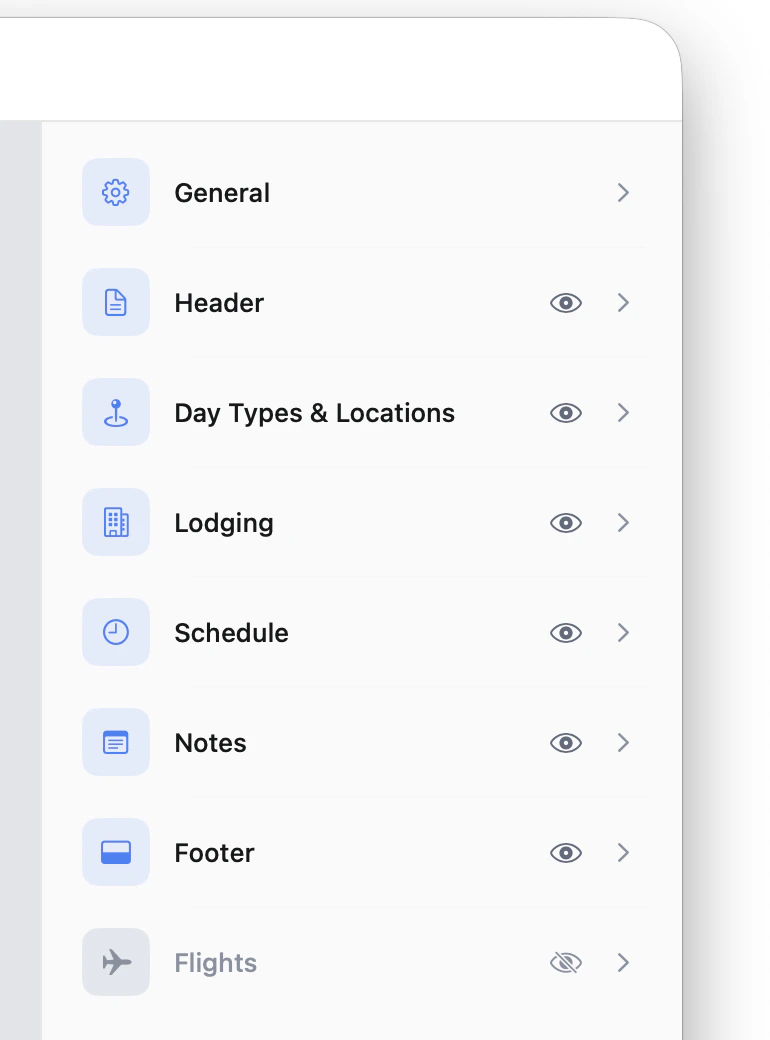
- Right panel: All of the customization controls for the export.
Customizing Your Export
You can modify the layout of the different sections on your day sheet, by clicking and dragging any section in the center position, and moving it to your desired location. You can also drag any section to the left of the right of another section on the preview to create a split-column layout.You can modify the layout of the different sections on your day sheet, by clicking and dragging any section in the center position, and moving it to your desired location.You can also drag any section to the left of the right of another section on the preview to create a split-column layout.
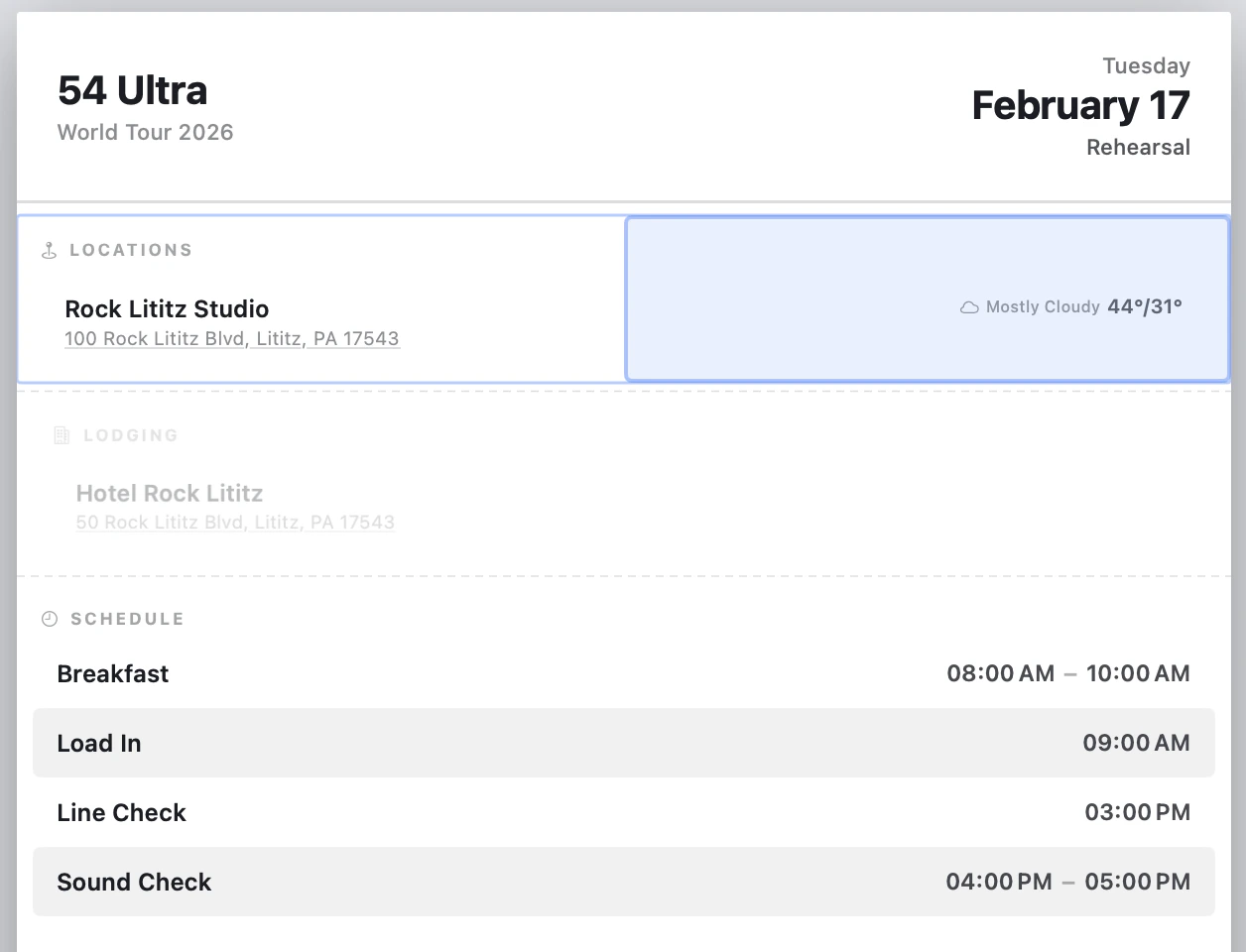
Each section of your export can be individually configured from the right panel.To access each section’s settings, click on the section right on the export preview, or click into the section using the right panel.Each section has it’s own set of unqiue settings, that allows you to completey customize how your export will look.Below you fill find a list of all of the different modifiers to create the day sheet the way you like it:Section Modifers:
General Settings
General Settings
The General section controls global settings that apply to the entire DaySheet.
- Font Family — Change the typeface used across the DaySheet.
- Font Size — Increase or decrease the font size for the entire document at once.
- Distribution Method — Choose between Email and Print mode:
- In Email mode, if your DaySheet exceeds 11 inches (the length of a standard 8.5 × 11 page), Daysheets exports it as a single page at 8.5 × 12 or 8.5 × 13.
- In Print mode, Daysheets automatically splits the content across two pages and shows you the page break preview.
- Black & White — Toggle off all colors for a printer-friendly version.
- Hide Location Boxes — Removes the border strokes from lodging and location cards.
Header
Header
The Header controls what appears at the top of your DaySheet, including the tour name, artist info, date, and logo.
1
Hide & Re-Arrange Header Elements
To adjust if or where certain elments live in the header, click and drag the different elements in the right panel to rearrange them, or click the eye ball on any element to hide it from the header. The header elements include:
- Tour Name
- Artist Name
- Date
- Day Type
2
Set Element placement
Use the placement dropdown for each element to select Left, Right, or Center alignment.
3
Add a Logo
Upload a logo using the upload area, or drag your logo image directly into the header in the center console. When a logo is added, Elements automatically shift to the one side of the header. You can ajdust the size of the logo in the header section using the vertical height slider.
4
Add a Background
You can also add a background to the header, and adjust the opacity of the background to make logos or Elements stand out.
Day Types & Locations
Day Types & Locations
There are two different ways to present the day types and locations on the export: Day Type BarThe Day Type Bar displays your venue information in a compact bar at the top of the page instead of taking up a full section. This can be toggled on or off in the Header Section
- Toggle the Day Type Bar on or off.
- Group Tags — If your tour uses Group Tags and multi-day support, toggle them on to display within the bar.
- Color Dot — Show or hide the color indicator for the day type.
- Address Detail — Control how much venue address information is displayed. By default, the full address is shown.
Schedule
Schedule
The Schedule section gives you fine-grained control over how your daily schedule appears.
- Toggle the schedule section on or off.
- Font Size — Adjust the font size for schedule text.
- Spacing — Control the vertical spacing between events.
- Bold Names / Times — Bold the event names, the event times, or both.
- Zebra Stripes — Toggle alternating row shading on or off.
- Time Stacking — Stack the start and end times vertically, or keep them horizontal. Vertical stacking works well for busy days.
- Time Position — Place times on the left or the right of each event.
- Time Format — Switch between 12-hour and military (24-hour) time.
- End Times — Toggle end times on or off.
- Notes — Include event-specific notes on the schedule.
- Transfers & Flights — Toggle transfers or flights on or off to show them inline on the schedule.
- Group Tags — Display Group Tags on the schedule view.
Lodging
Lodging
The Lodging section controls how your hotel information is displayed.All of your hotels appear in the right panel as a checklist. Uncheck any hotel to exclude it from the DaySheet, or toggle off Lodging entirely to hide the section.For each hotel, you can display:
- Phone numbers
- Check-in and check-out dates
- Confirmation numbers
- Guest names
- Group Tags
Notes
Notes
Click on the Notes section to control how general notes appear on your export.
- Toggle all notes on or off.
- Create a note directly from the Exporter.
- Background shading — Remove or apply shading behind each note.
- Font color — Click on an individual note to change its font color.
- Highlight color — Click on an individual note to apply a highlight color, or choose no highlight to remove it.
- Note style — Set the overall note style to black or white.
Flights
Flights
The Flights section lets you control which flight details appear on the export.
- Passengers — Show or hide passenger names.
- Seat Assignments — Display seat numbers alongside passengers.
- Confirmation Numbers — Show flight confirmation codes.
- Zebra Stripes — Toggle alternating row shading.
- Arriving & In-Transit Flights — Show flights that are arriving at or transiting through the city, not just departing flights.
Creating Day Sheet Templates
Once you’ve customized the day sheet to your liking, you can save your layout as a reusable template.1
Open the template menu
Click the Template button in the top-left corner of the Exporter, where you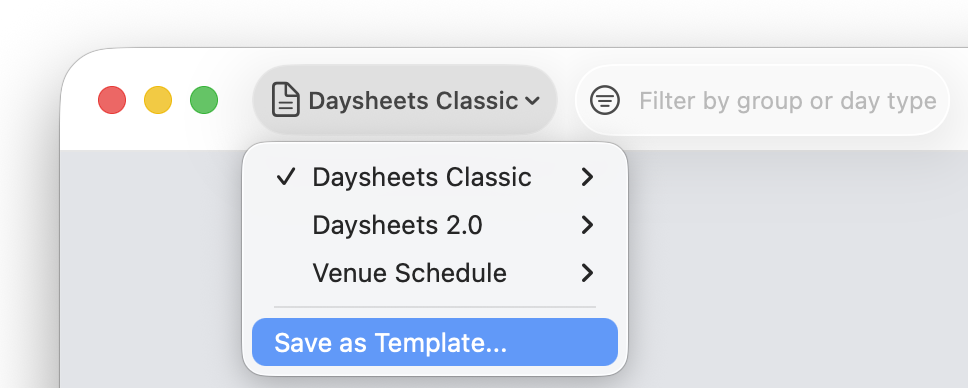
2
Save your template
Name your template and save it. You can reuse this template on any future day sheet.
3
Apply Your Template
Next time you’re creating a day sheet, click Daysheets Classic, and switch to the recently created template. 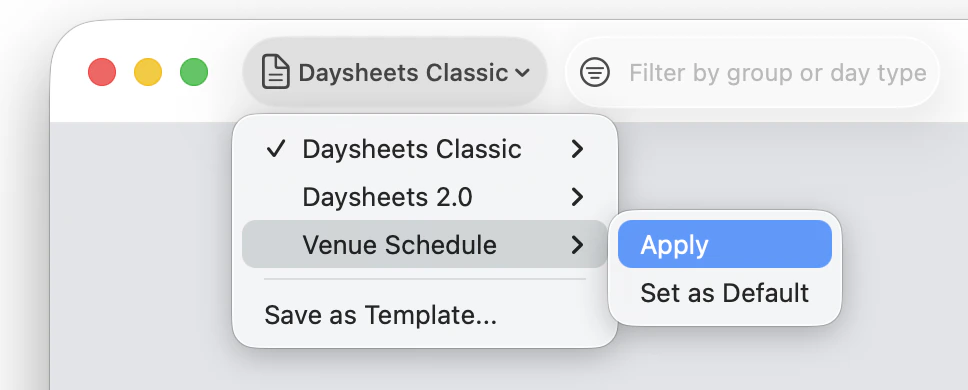
- Daysheets Classic: Matches the layout and style from Daysheets 1.0.
- Daysheets 2.0: Uses the new Day Type Bar, places notes above lodging, and adds card styling around lodging sections.
- Venue Schedule: Ideal for hanging schedules around the venue.
Share your Export
When your day sheet looks the way you want, you have two ways to export:- Share — Click the share button to intstantly share the export to other apps, or anyone in your rolodex.
- Download — Download the export as a pdf to the file location of your choice.