Overview
Documents added to the Day View are tied directly to a specific date on the tour. This is ideal for items such as:
- Stage Plots
- Parking Maps
- Tech Packs
- Venue specs or credentials
- Catering Menus
- PDFs, images, or other reference files
Once added, documents are visible to anyone with access to that day, based on your permission settings.
Ways to Add Documents
Daysheets supports multiple methods for adding documents to a day:
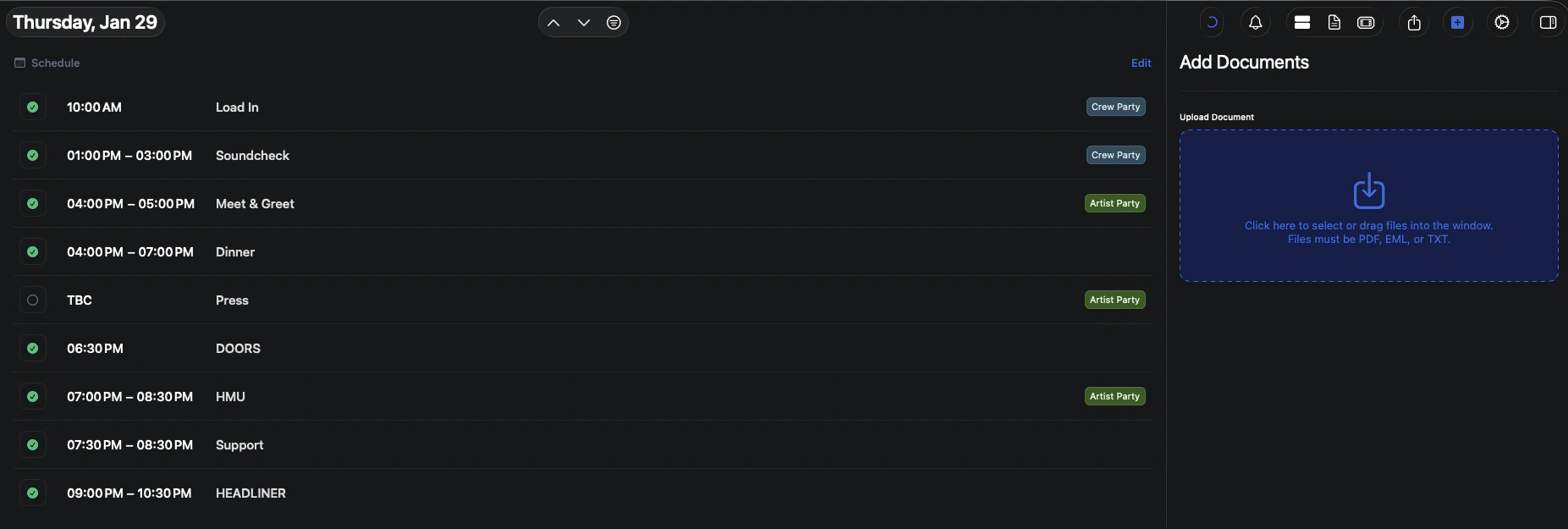
Adding Documents from the Day View
- Navigate to your tour and select the day you want to add documents to.
- In the Day View, locate the Documents section by clicking the ”+” button in the top right corner or by pressing “command + D”
- Click the Upload Document section, or drag files directly into the document area.
- Select one or more files from your computer to upload.
- Once uploaded, the documents will immediately appear in the Day View.
Documents are automatically saved and associated with that date.
Drag and Drop Uploads
You can also add documents by dragging files directly into the Day View:
- Open the Day View for the desired date.
- Drag files from your computer into the Documents area.
- Release to upload.
This method is especially useful for quickly adding multiple documents at once.
Managing Documents
After documents are added, you can:
- Rename documents
- Download files
- Remove documents from the day
Any changes are reflected in real time for users with access to the tour.
Visibility & Permissions
Document visibility follows your tour’s permission rules:
- Only users with access to the day can view attached documents
- Admins can manage and remove documents
- Files are read-only unless replaced or removed
You currently cannot assign a document to a group or specific person. If a document is uploaded to the day, anyone that has access to seeing that day will be able to see the document
Tips
- Use clear file names so documents are easy to identify at a glance
- Add documents as soon as they are received to keep the day organized
- Attach final versions only to avoid confusion on show day
Once documents are added, your team can quickly access everything they need directly from the Day View—keeping show days organized and stress-free.